website not showing on google
Why Google Can't Find Your Website: 8 Technical SEO Checks
Search for your business and your website is missing? These 8 technical checks find why Google cannot see or show your site, in plain language you can follow.
Technical SEOUpdated 7 min readBy Kanchana Delgoda, Search and AI visibility
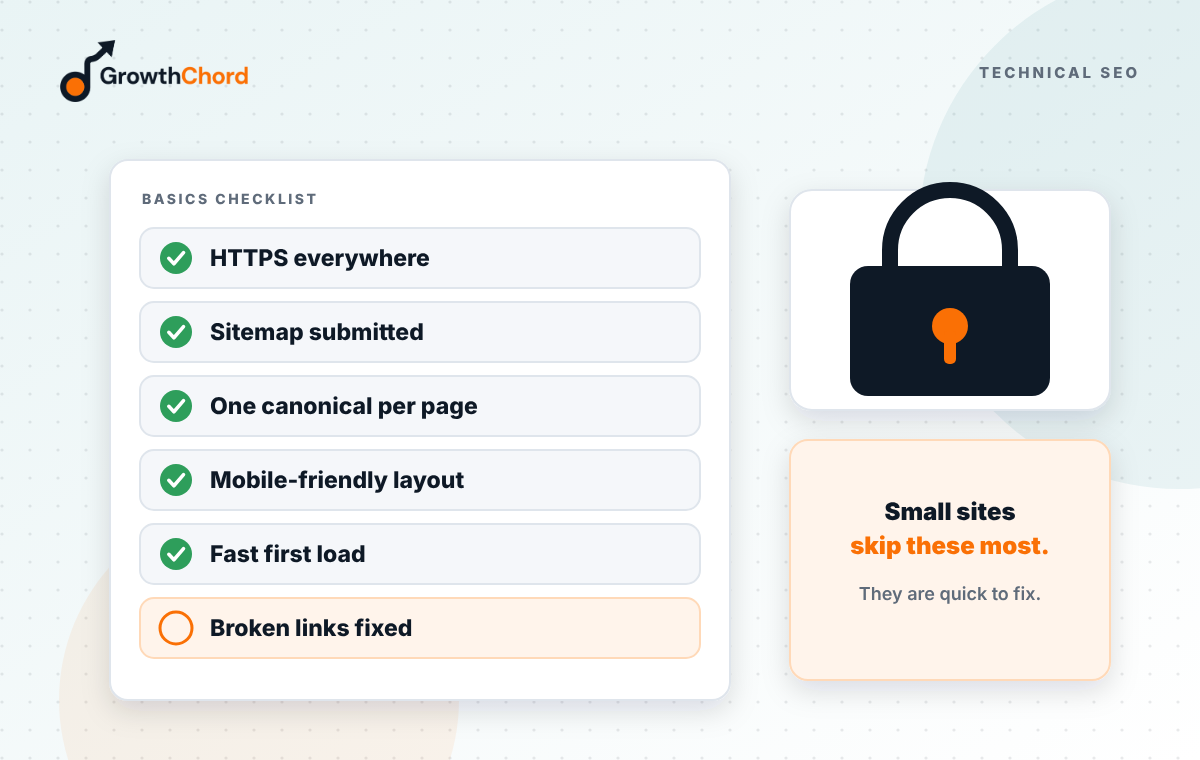
Short answer: if your website is not showing on Google, check eight things: whether Google has indexed it, robots.txt, noindex tags, your sitemap, HTTPS and redirects, duplicate pages, mobile usability, and page speed. Google Search Console shows most of these for free, with a plain reason for each.
You type your business name into Google and your Facebook page shows up, a directory shows up, but your own website does not. Or it shows for your name but never for your services. Usually the cause is technical and fixable.
How do you set up Search Console before you start?
Add your site as a property in Google Search Console and verify that you own it. It is free, and it is the only place Google tells you directly which pages it has indexed and why others were left out. Most of the checks below start there.
- Go to Search Console and choose Add property.
- Pick Domain if you can edit your DNS, or URL prefix if you cannot.
- Follow the verification step. Your domain or hosting provider can help with the DNS record.
- Wait a few days for data to appear, then open the Pages report.
If someone else built your site, ask whether a property already exists and get yourself added as an owner. Do not rely on a developer's login you cannot reach later.
1. Has Google indexed your site at all?
Search "site:yourwebsite.com" for a rough answer. If nothing appears, Google has not indexed your pages. For an exact answer, use the Pages report in Search Console. It lists indexed pages, pages left out, and the reason for each. The reason tells you which fix to use.
- Excluded by "noindex" tag: the page asks not to be shown. Remove the tag if the page matters.
- Blocked by robots.txt: Google is told not to visit. Edit robots.txt.
- Crawled - currently not indexed: Google visited but chose not to show it. Improve the page and link to it.
- Discovered - currently not indexed: Google knows it exists but has not visited yet. Link to it, check the sitemap, and give it time.
- Duplicate without user-selected canonical: Google sees it as a copy. Set a canonical or merge the pages.
- Not found (404): the address is broken. Redirect it or fix the link.
Not every excluded page is a problem. Old redirects and tag pages are often left out on purpose. Focus on the pages you want customers to land on.
2. Is robots.txt blocking Google?
Open yourwebsite.com/robots.txt in a browser. The line "Disallow: /" under "User-agent: *" or "User-agent: Googlebot" blocks the whole site. Builders and developers sometimes add this during design and forget to remove it at launch, so check it after every rebuild.
- Look for "Disallow: /" with nothing after the slash.
- Check that service and contact pages are not listed under Disallow.
- Make sure the file lists your sitemap address.
Robots.txt controls visits, not indexing. A blocked page can still appear in results without a description, and Google cannot see a noindex tag on a page it is not allowed to visit. Our post on robots.txt, llms.txt and crawl access covers this in more depth, including AI crawlers.
3. Are your pages marked "noindex"?
A noindex tag tells Google not to show a page. Website builders often add one to every page through a "hide from search engines" setting during design. If that setting was left on, the site can look perfect and still never appear in results.
- Paste a key page address into the URL Inspection bar at the top of Search Console.
- Read Page indexing for the result.
- If it says excluded by noindex, find the setting in your builder or SEO plugin.
- Turn it off, save, then click Request indexing.
4. Do you have a sitemap?
A sitemap lists the pages you want search engines to find. Make sure it exists, lists your real pages, and is submitted in Search Console. Most builders and SEO plugins create one automatically, often at /sitemap.xml, but it still needs checking.
- Open it in a browser and confirm your service pages are listed.
- Remove test pages, thank-you pages and old addresses.
- Submit it in the Sitemaps report and check the status says it was read.
5. Are HTTPS and redirects set up correctly?
Your site should load on one version only, for example https://yourwebsite.com, with every other version redirecting to it permanently. If the site loads on both www and non-www, or on http and https, Google sees several sites and splits its signals between them.
- Type
http://yourwebsite.comand check it ends up athttps://yourwebsite.com. - Type
http://www.yourwebsite.comand check it ends up at the same place. - Type
https://www.yourwebsite.comand check that too.
Test each address on your phone. If any version loads on its own address, or shows a security warning, ask your developer or hosting provider for permanent redirects. Pick www or non-www once and keep it.
6. Do you have duplicate pages?
The same content at several addresses, or many near-identical pages with only a word changed, makes Google choose one and ignore the rest. Merge true duplicates, and use canonical tags where two addresses must exist. Each page should have a reason to exist that no other page covers.
- Find area pages that differ only by town name, such as Kandy and Galle with identical text.
- Combine thin pages into one stronger page, then redirect the old addresses.
- Check that each page's canonical points to itself unless it really is a copy.
If you publish in Sinhala, Tamil and English, give each language its own page and link them with hreflang tags. Do not rely on a translate button that swaps text on the same address, because Google may only see one version.
7. Does the site work on mobile?
Google mainly uses the mobile version of your site for indexing and ranking. If content is missing on mobile, text is tiny, or buttons overlap, you lose both rankings and customers. Most searchers here are on a phone, often on mobile data, so test the way they do.
- Open your key pages on your own phone, with Wi-Fi turned off.
- Check that the text, prices and contact details match the desktop version.
- Tap every button and menu item.
- Run a Lighthouse test in Chrome for a second opinion.
Search Console no longer has a separate mobile usability report, so a real phone is the best test you have.
8. Is the site fast enough?
Very slow pages lose visitors and may be crawled less. Check PageSpeed Insights on mobile for your homepage and your top service page. Focus on Core Web Vitals and the field data from real visitors, if it is shown, rather than the overall score.
- Largest Contentful Paint: good is 2.5 seconds or less. When poor, visitors stare at a blank or half-loaded page.
- Interaction to Next Paint: good is 200 milliseconds or less. When poor, taps seem to do nothing.
- Cumulative Layout Shift: good is 0.1 or less. When poor, buttons jump as you go to tap them.
The Core Web Vitals report in Search Console groups slow pages so you can fix a whole template at once. Read which Core Web Vitals matter for lead generation before you chase a perfect score.
What if everything checks out?
Then the problem is probably not technical but competitive. Your pages may not answer the search as well as others, your services and areas may not be clear, or your site may have few links and mentions. That is where content, local SEO and a stronger Google Business Profile come in.
- Search your main service and town, and compare your page with the top three.
- Check that each service has its own page with a clear heading.
- Ask whether a customer would choose you from that page alone.
What should you do first?
Set up Search Console today if you have not, then work through the checks in order. The first three can each stop a site from showing at all, so fix those before anything else. Use our free SEO starter checklist to track progress.
- Search Console verified, with you as an owner.
- Key pages indexed in the Pages report.
- No site-wide Disallow in robots.txt.
- No noindex on pages you want found.
- Sitemap submitted and read.
- One HTTPS version, with redirects from the rest.
- Duplicate and thin pages merged.
- Key pages tested on a real phone and in PageSpeed Insights.
Our SEO service starts with this technical check, and our web development team fixes what it finds. Want us to check your site? Request a free growth audit.
- Technical SEO
- Core Web Vitals
- Crawlability